Add or edit payment method
Add or update the payment method on your Zonos account used for billing purposes. Zonos supports paying invoices with a credit card or a bank account (ACH direct debit). Invoices paid with a credit card include a 4% processing fee (where applicable); paying by bank account avoids this fee. See invoices for details.
Add a bank account
To add a bank account:
- Go to Dashboard -> Settings -> Billing.
- Click the button Update payment method.
- Click the button in the bottom right to Add payment method.
- Select the radio dial next to Bank account (instead of adding card info).
- Click Connect your bank.
- Click Agree and continue.
- If you're signed into Link, you may be asked to enter a one-time code, after which you'll be able to select from a list of your saved bank accounts in Link. If you are not, you'll automatically continue to the next step, where you'll be taken to a generic screen to search for your bank name and select it.
- Depending on your bank, your steps may vary slightly from what is below (each bank has their own process, but it should be similar).
- Log in to your bank account.
- Select the account at your bank that you want to pay from and click Connect account.
- Click either Save with Link or Finish without saving - both are acceptable.
- Click Done.
- Some banks may ask you to verify 2 micro-deposits via email. Your ACH setup is only complete after you have completed this validation, if requested.
- After successfully connecting, you'll see your bank account show in the payment methods in Dashboard. Ensure this is set as the default. If it is not the default, click the three dots next to the bank account and click Set as default.
Add or edit a card
To add or update a credit card:
- Log in to Dashboard -> Settings -> Billing.
- Click Update payment method.
- Click Add payment method in the bottom right.
- Select Card and enter your card details.
- Click Save.
Edit your primary billing contact
If Zonos ever needs to reach out to you about billing issues, we will first attempt to reach the primary billing contact associated with your account. This is useful in cases where you want billing inquiries to go straight to your accounting team and not just to the main admin of your Zonos account.
To edit your primary billing contact:
- Log in to Dashboard -> Settings -> Billing.
- Enter the details of who you want Zonos to reach out to for billing inquiries in the Primary billing contact section.
- Click Save.
Edit payment method and primary billing contact
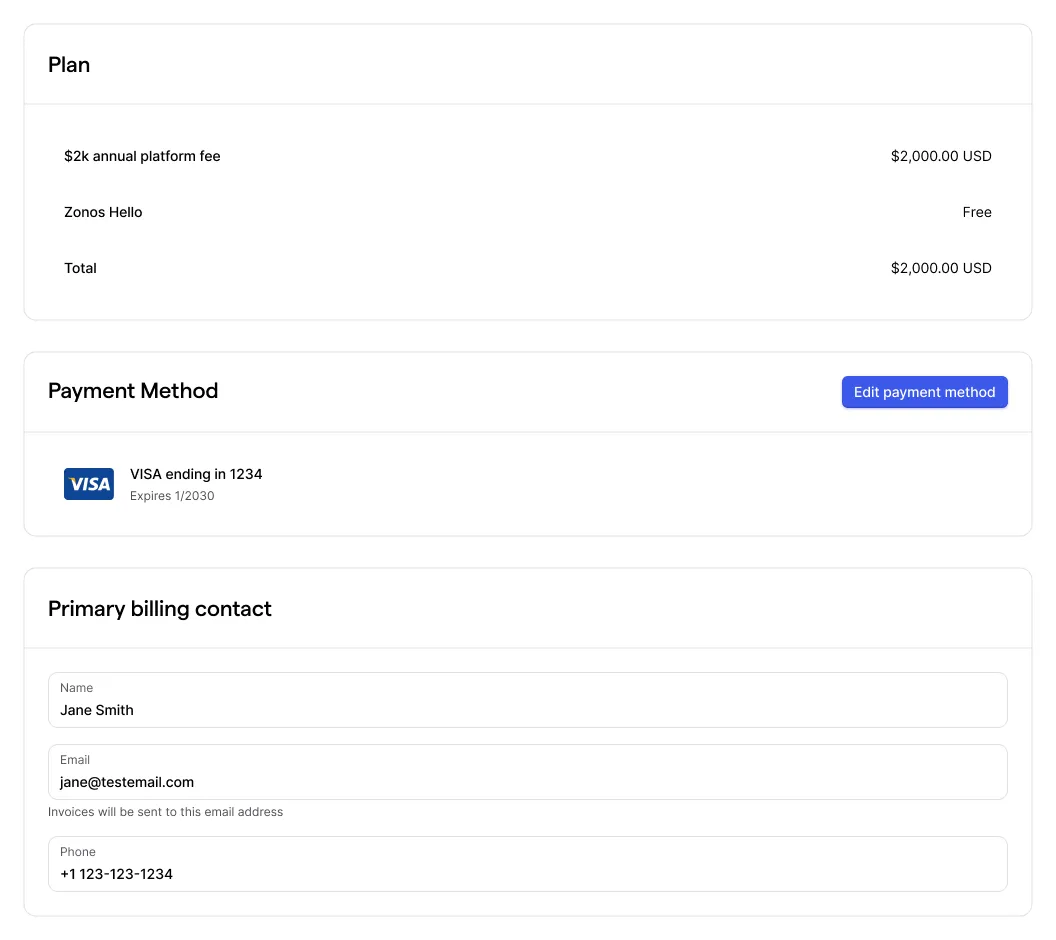
Update your payment info
Add or edit your billing information.Manage your billing information and view details about your active subscriptions and their associated costs from Zonos Dashboard.